Header
The global header appears at the top of every page. It contains your company logo, navigation menu, search bar, and other key elements.

Theme settings
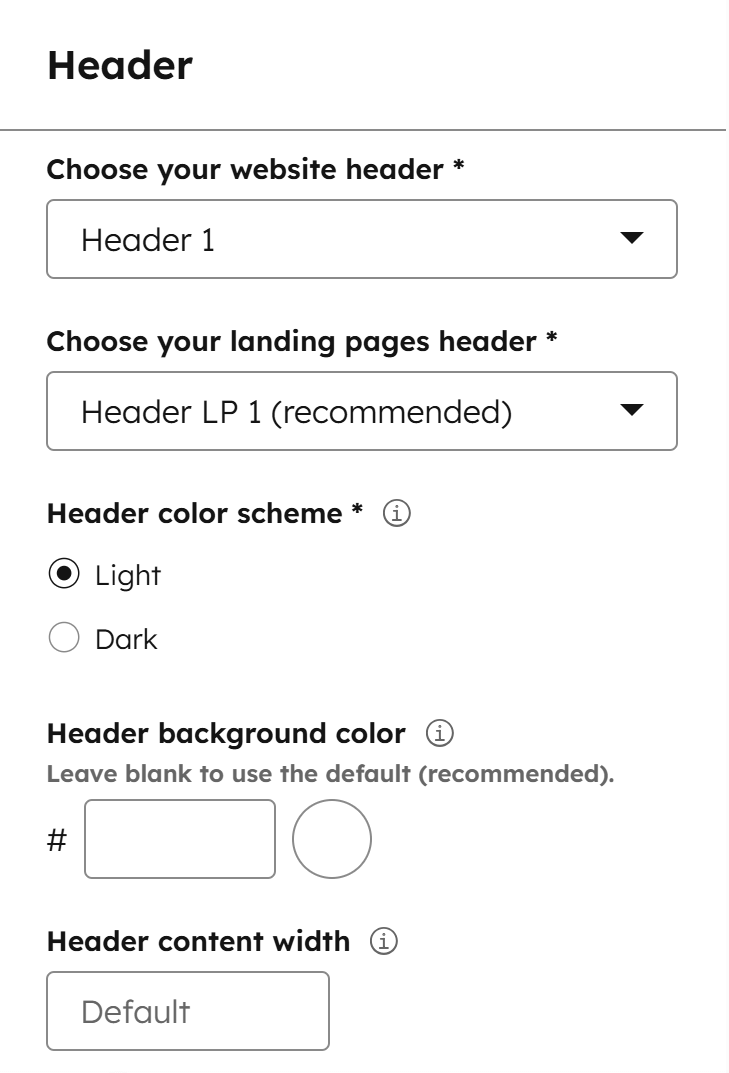
You can access the base header settings in your Theme Settings > Components > Header:
Choosing headers
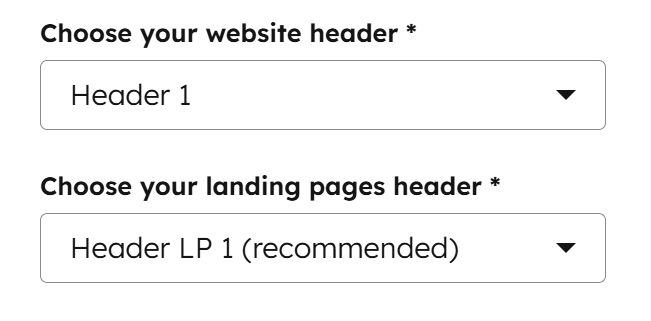
Act3 offers six website headers and two navigation-free landing page headers. You can choose either type, but it’s recommended to use a website header for your website and a landing page header for your landing pages.
Header color scheme
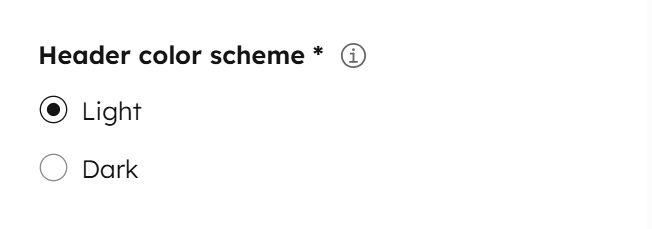
You can choose a Light or Dark color scheme for your headers. This changes the background, borders, and other elements, but most modules have their own color scheme settings and aren’t updated automatically. In those cases, you need to edit your global header and select the correct color scheme for each module as well.
Header background color
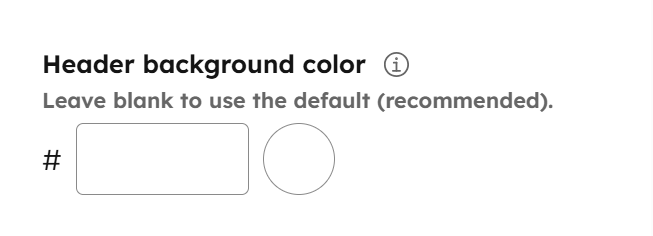
Added in Version 42. We recommend leaving this blank, unless you really need a different background color. By default, a light header uses a white background, and a dark header uses your Dark gray background.
Please note:
If you set a custom color, choose a light color with the Light header scheme and a dark color with the Dark header scheme. Otherwise, header elements may not be visible to users. This option is generally more useful with a dark header, since light headers usually have a white background.
Header content width
This setting added in Version 42 defines the width of your header content. For design consistency, we recommend leaving it blank so the header uses the default Content width from the Layout settings. The container also includes side padding based on the Gutter setting.
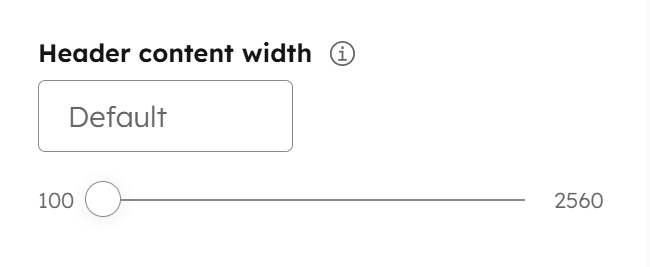
Sticky header
To keep your website header visible while scrolling, enable the Sticky header option. Staring with Version 42, you can also Disable the sticky header on mobile and remove the shadow.
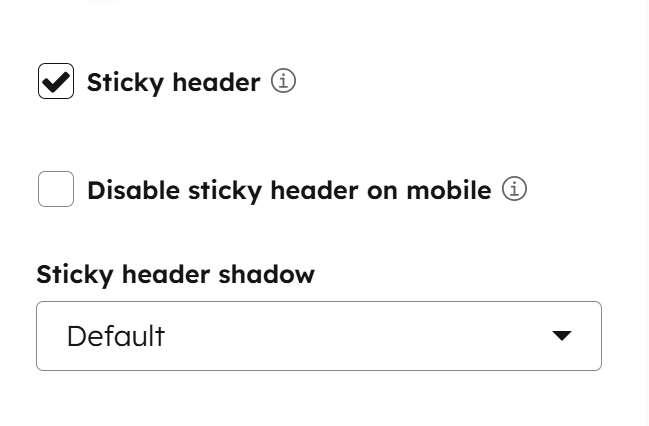
Header island
In Version 42, we added this design option for both the default and sticky header states. Once enabled, you can customize the width, spacing, and corner radius independently for each header state.

Page settings
You can find two useful settings in the Contents sidebar while editing your page. These are page-specific settings and will apply only to the current page.
LP header and footer
All page templates in Act3 can be used for both website pages and landing pages. Simply check this box on your page to apply the landing page header and footer, or uncheck it to use the default website versions:
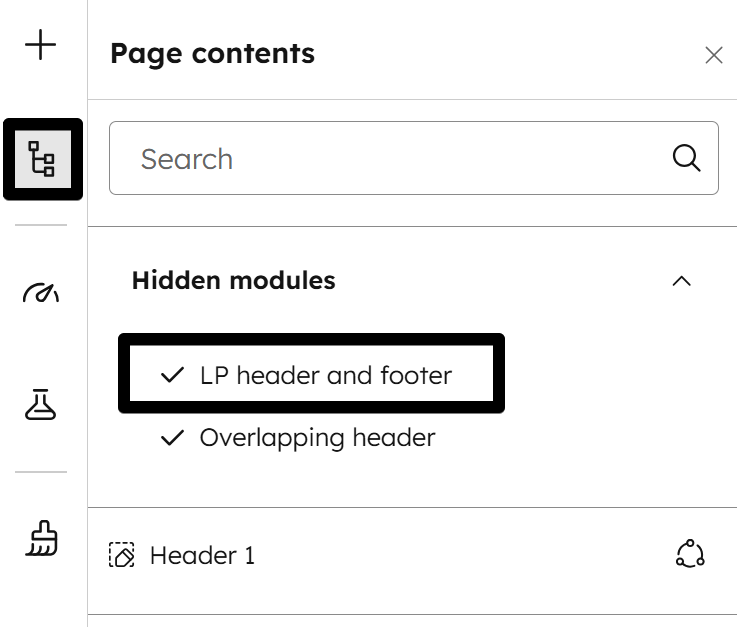
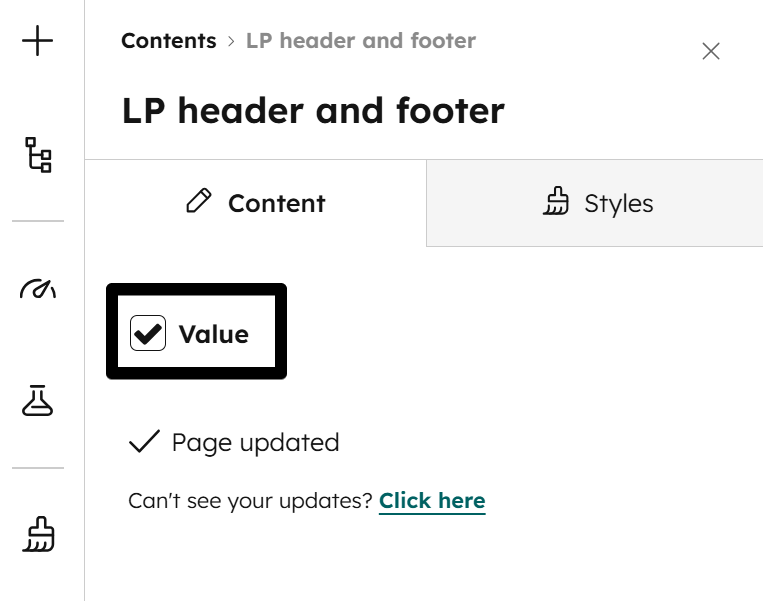
Overlapping header
If your page has a large background at the top and you want your header to overlap that section, you can check this box:
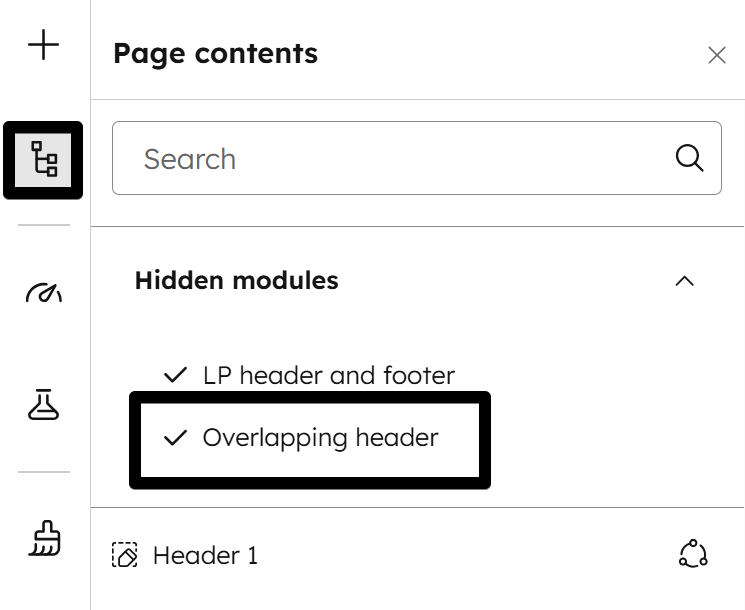
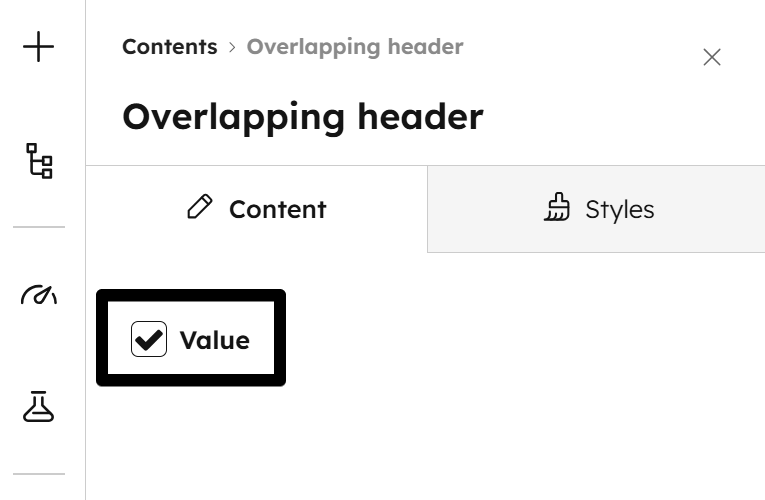
Please note:
A light header is usually not meant to overlap content, which is why the overlapping header is transparent and always uses a Dark color scheme for its overlapping elements.
Editing header content
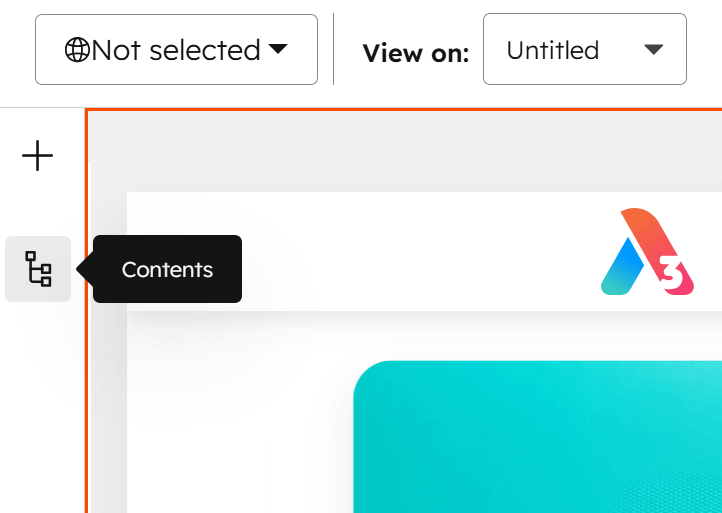
You can edit the content of your header by clicking it in the page editor, which will open it in the Global content editor:
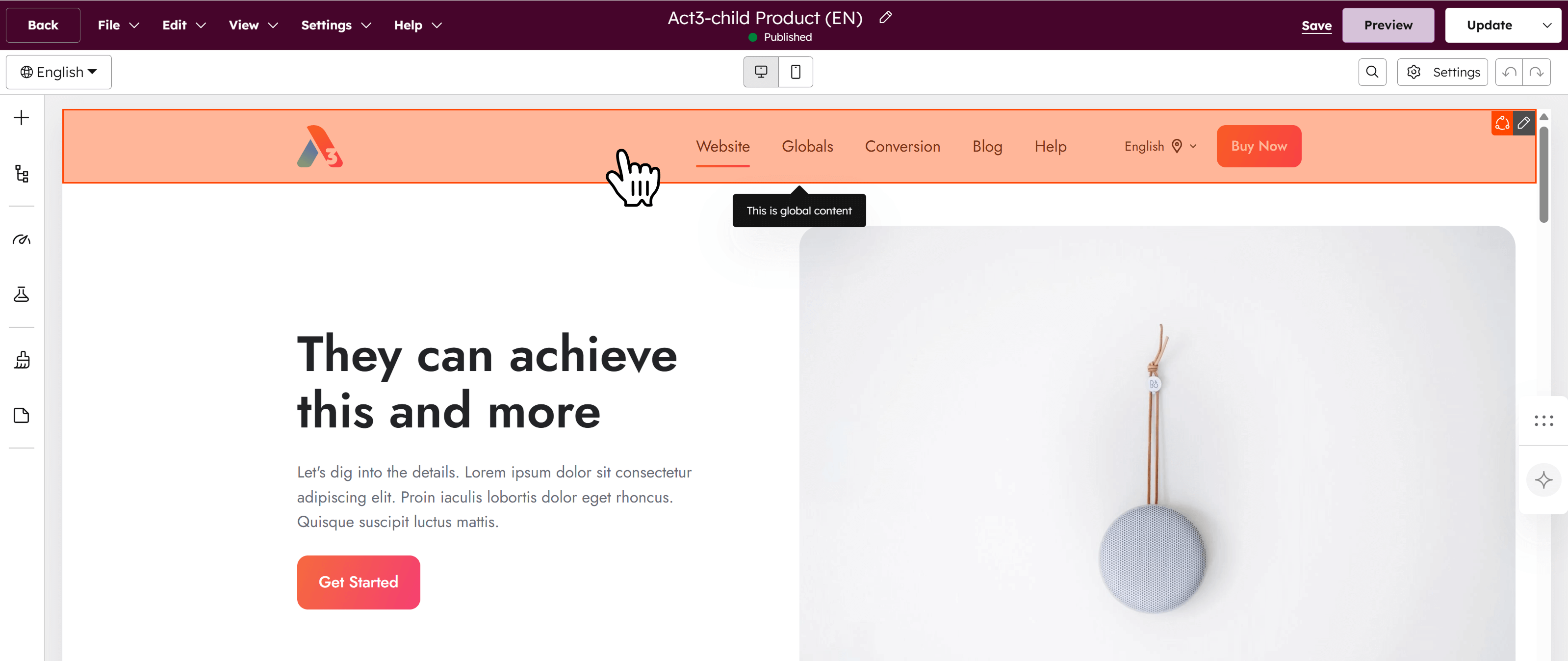
You can tell you are in the global content editor by the label in the center and the border around the editor:
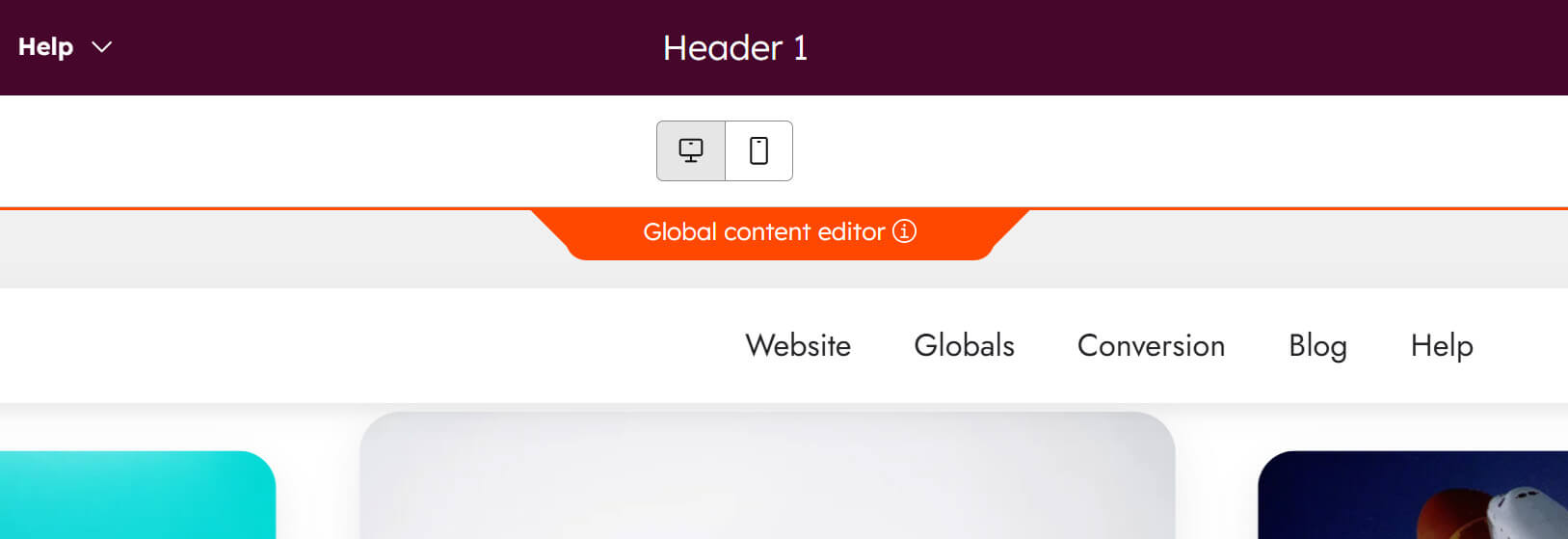
Please note:
Any changes you make to your global headers will be applied across your entire website and landing pages.
Here you can edit the content of the header, including the logo, menu, icons, button, etc. Each header in Act3 has its own elements, and some content is hidden behind the Contents sidebar on the left side of the screen. We recommend opening it to see all the available options:
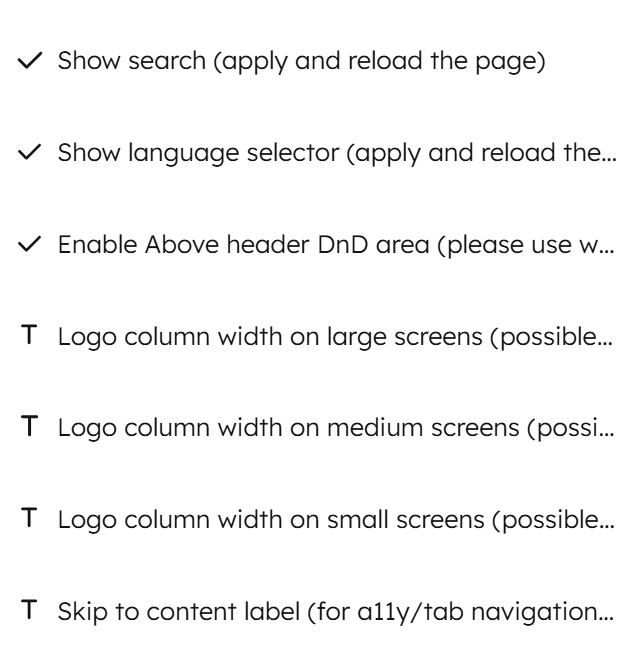
The first part include options specific to the current header, such as enabling the site search feature, or changing the logo column vor the various screens. These options require saving your changes and forcing a refresh of the page to see the changes in the editor:
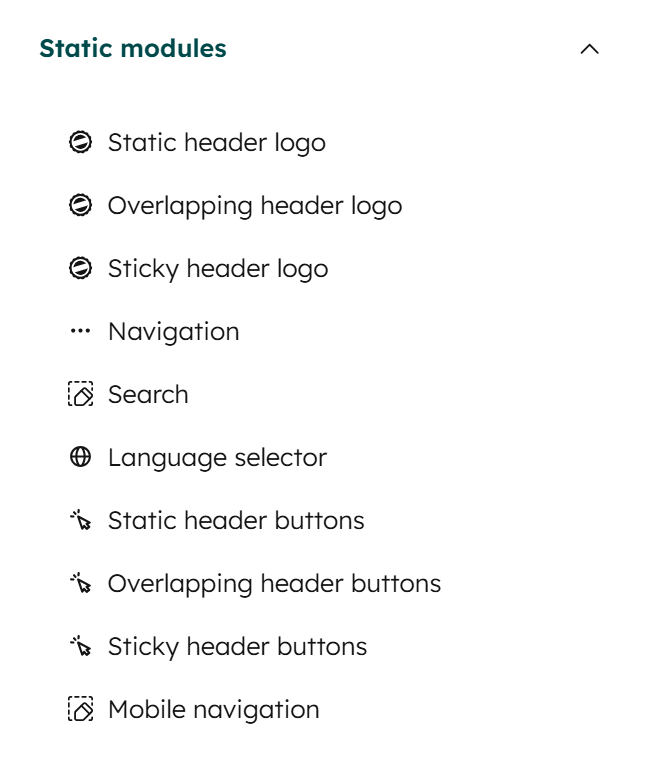
The second part includes the header content, such as the logo, menu, mobile navigation, icons, buttons, and other modules:
Act3 has three header states: default, sticky, and overlapping. To give users flexibility, some elements have separate content modules for each header state. The logo, buttons, and icons each need content for every header state.
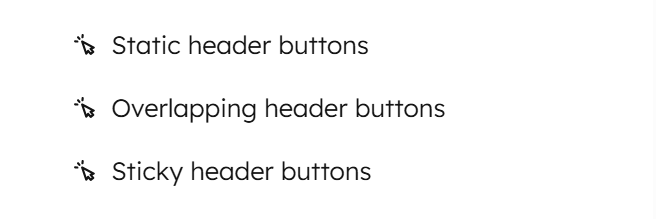
For example, you might provide a white logo for the overlapping header to make it visible on a dark background, or a smaller logo in the sticky header to save space in the viewport. Because of this, you must provide content for all these modules.
Check the Contents sidebar to update each module as needed. For instance, if you change your logo but still see the Act3 logo in the sticky header while scrolling, it means the Sticky header logo module has not been updated.
Previews
Here are all the headers included in Act3:
Header 1


Header 2


Header 3


Header 4


Header 5


Header 6


Header LP 1


Header LP 2

